Create an OpenAPI-based MCP server
The quickest way to expose an API’s capabilities to LLM client applications is by uploading an OpenAPI document to Gram. Once uploaded, Gram automatically generates tool definitions based on the specification.
OpenAPI-sourced MCP servers are ideal for the following use cases:
- Internal workflows: Empower internal teams to query data and automate processes within LLM clients. For example, querying usage data, or toggling feature flags for customers.
- In-App agents: Enable chat agents within your application to interact with your API to perform workflows on behalf of a user. For example, performing tasks for users based on natural language requests in lieu of requiring them to navigate through the UI.
- Automated workflows: Build flexible workflows within platforms such as n8n. For example, automatically triaging GitHub issues, and creating Linear tickets from them.
This guide walks through the steps of building an MCP server with an OpenAPI specification. This includes:
- Adding an OpenAPI document as a source,
- Curating a toolset into an MCP server, and
- Managing MCP servers in Gram.
Before you start
This guide assumes that you have already done the following:
- Created a Gram account ,
- Created a Gram project (accomplished during onboarding), and
- Obtained an OpenAPI document for the API you want to build an MCP server for.
Note
If you don’t have an OpenAPI document to follow along with, you can follow this guide using the National Weather Service’s OpenAPI document . Simply copy the JSON contents of that URL, and save it to a file on your computer.
Step 1: Upload the OpenAPI document
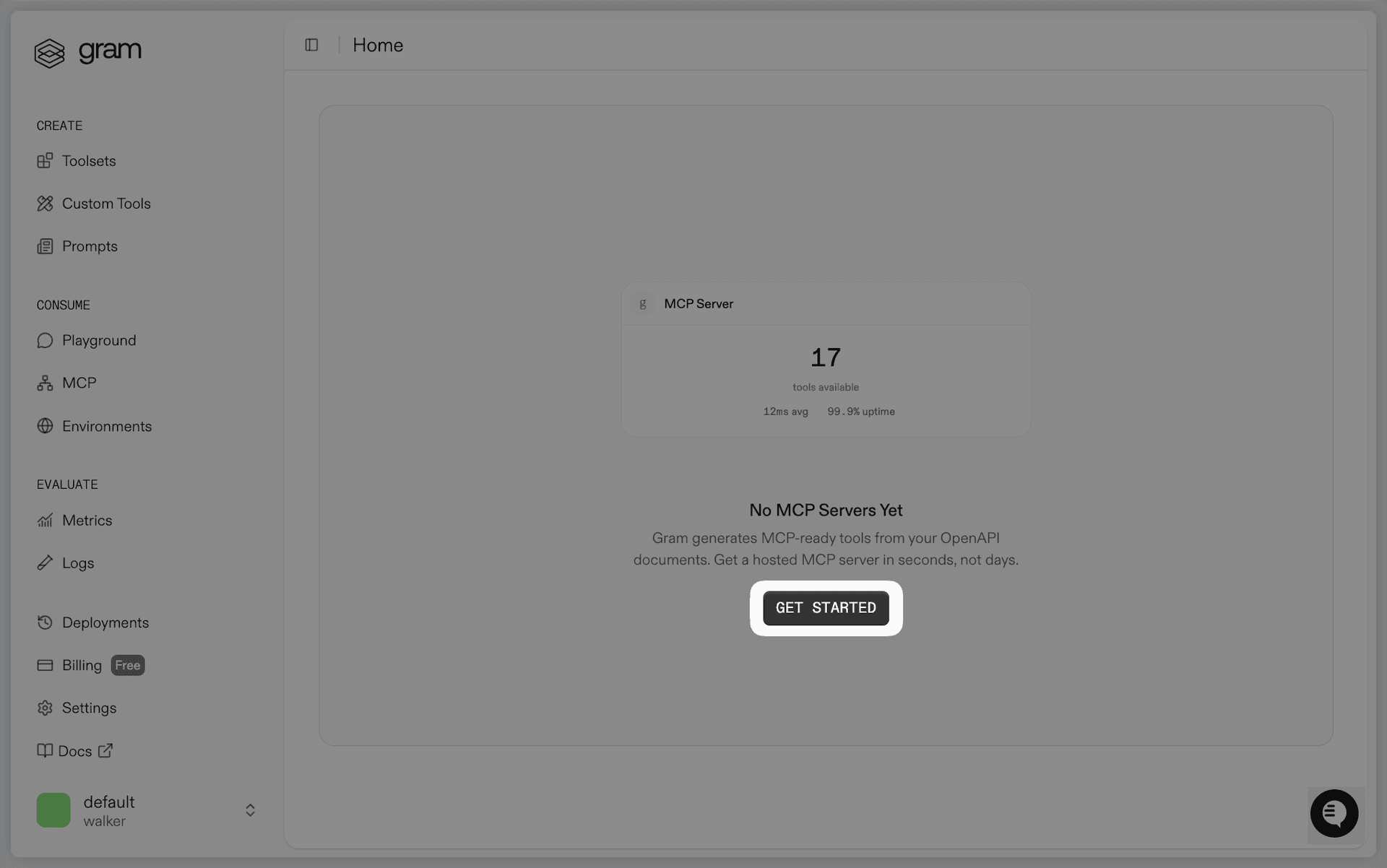
First, upload your source - the OpenAPI document. If you have added no sources to your project yet, you can do this by clicking the Get Started button on the Toolsets page. This will kick off an onboarding workflow that guides you through adding your first source and creating a toolset.
If your project already contains sources, you can add a new OpenAPI document by clicking Add API (also from the Toolsets page), and following the prompts to upload your OpenAPI document.
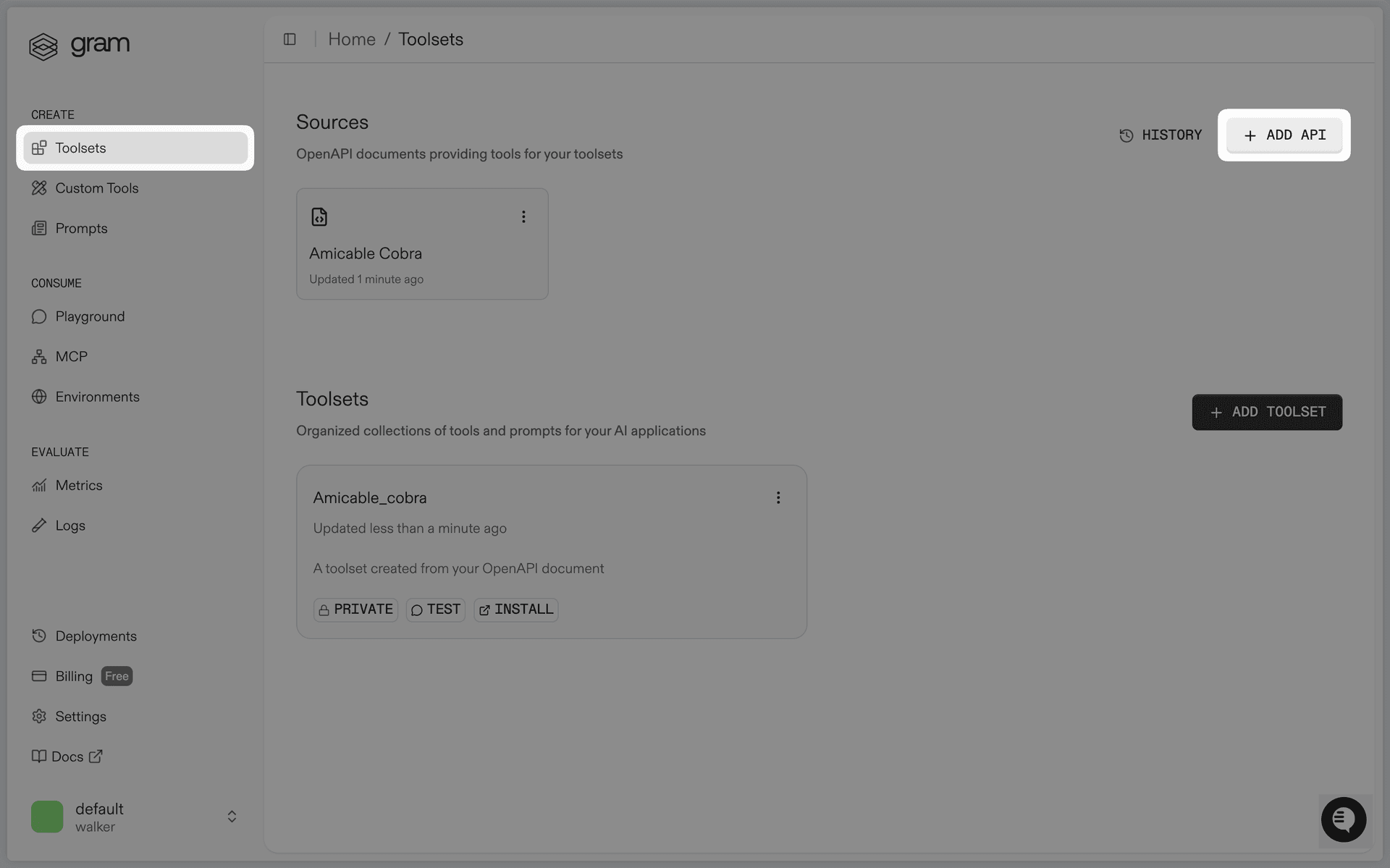
After uploading your OpenAPI document, Gram will parse its API operations into tools that can be included in a toolset, and thus an MCP server.
Note
The quality of your OpenAPI document directly impacts the quality of your MCP server. Learn about writing better OpenAPI documents in the OpenAPI hub .
Step 2: Create a toolset
OpenAPI specifications often describe dozens, or even hundreds of API operations. However, not all of these operations may be relevant to your use case. Furthermore, carelessly including too many tools in your MCP server can degrade the downstream LLM client’s performance. To address this, Gram allows you to curate OpenAPI operations into focused toolsets, which are curated collections of tools for a specific use cases or teams.
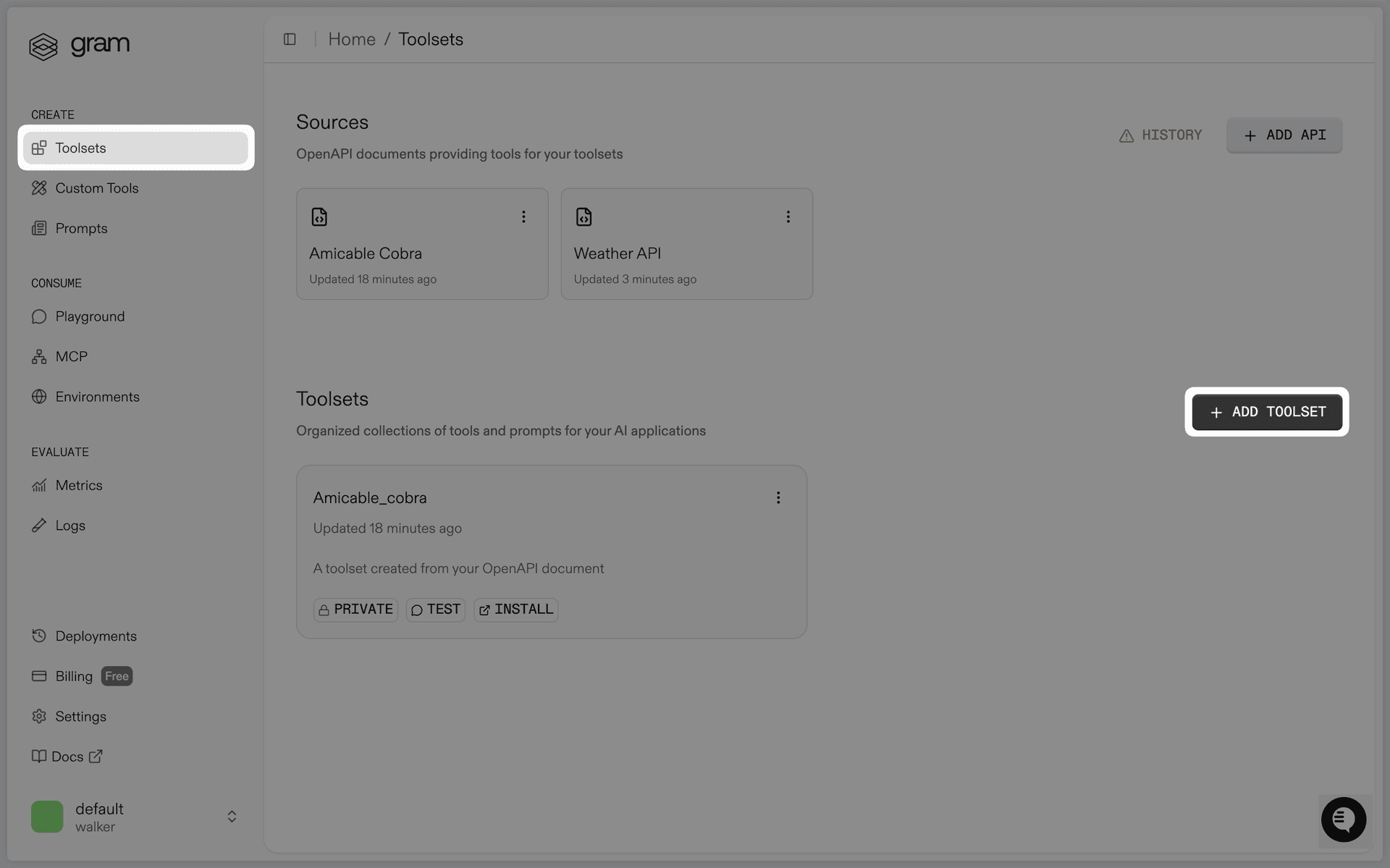
To create a toolset, click Add Toolset from the Toolsets page:
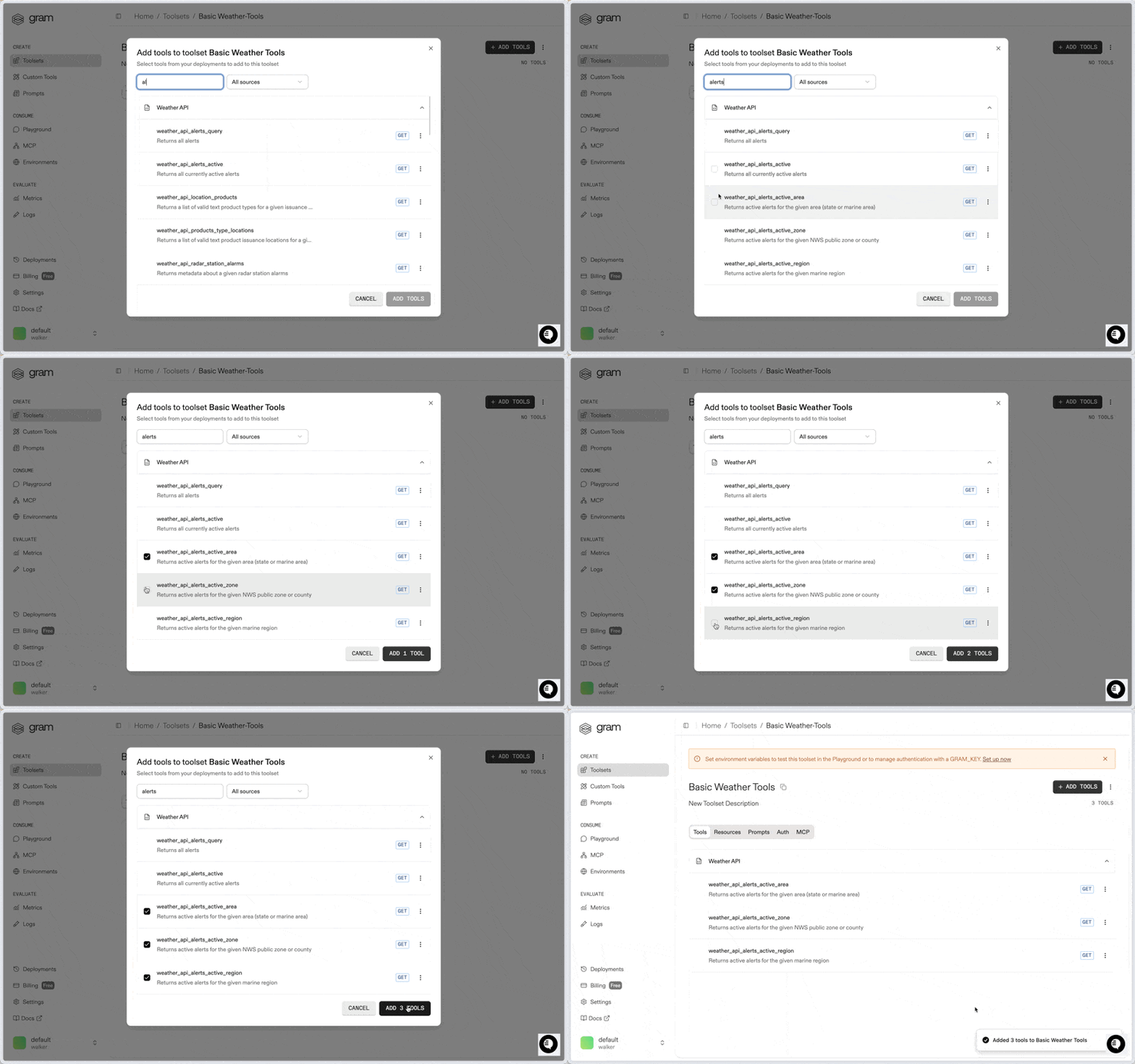
Follow the prompts to name your toolset, then click Add Tools to select the OpenAPI operations you want to include. In the following example, a toolset for very basic weather queries is being created:
Step 3: Set environment variables
If the API you are building an MCP server for requires authentication, you will need to set the appropriate environment variables for the toolset to be able to authenticate requests.
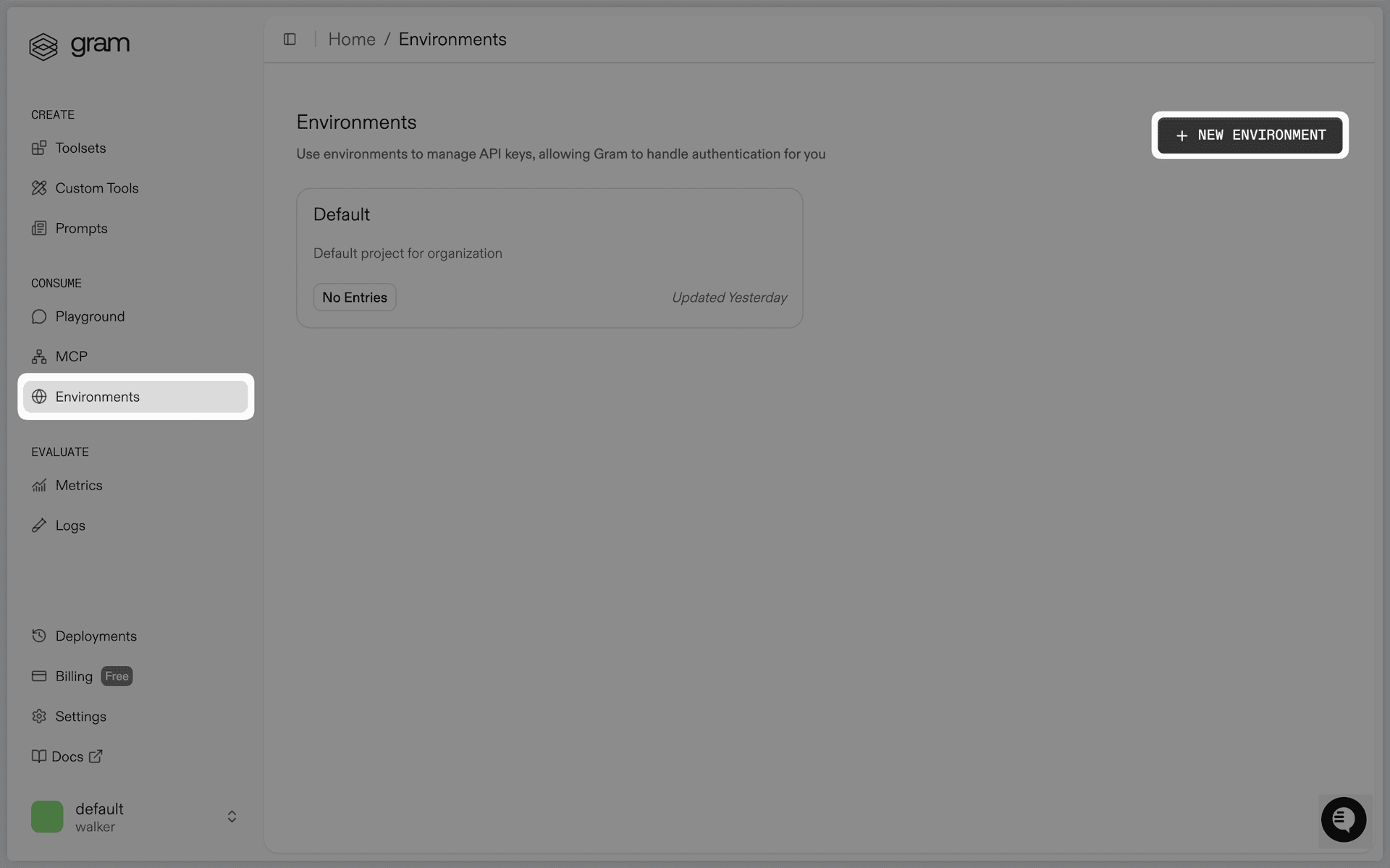
Click Environments in the sidebar, and then + New Environment or open the Default environment. If you choose to create a new environment, you’ll be prompted to give it a name.
Next, click Fill For Toolset, then select the toolset you created in Step 2.
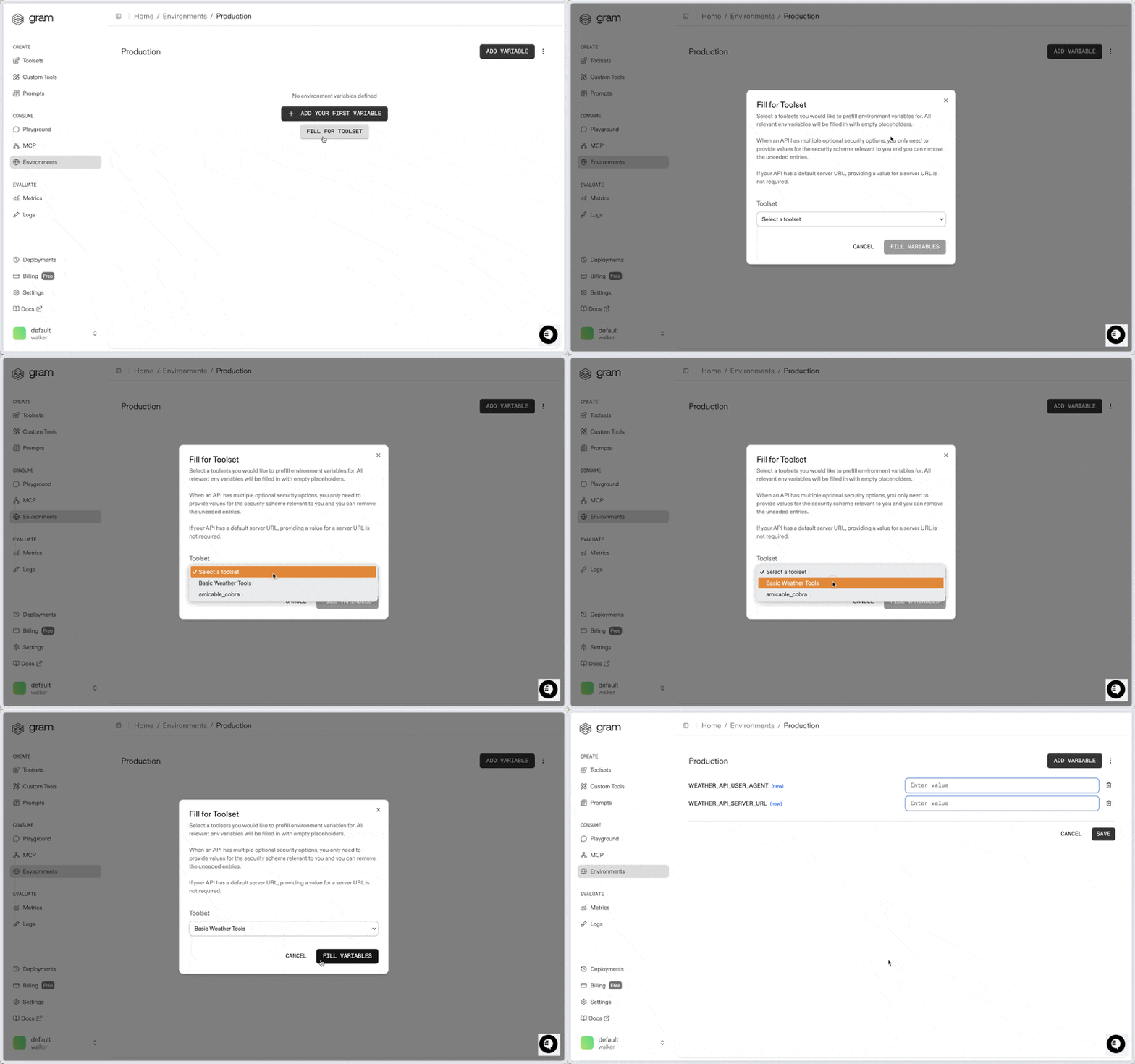
Fill in the required environment variables, then click Save.
Note on Variable Names
Environment variables will be named according to the name you gave the API Source in Step 1.
Note on Required Environment Variables
While the Fill For Toolset feature helps you get started quickly, keep in
mind that not all of the generated variables are necessarily required. For
example, the above example’s Weather API does not require
WEATHER_API_SERVER_URL since it is defined in the OpenAPI document.
Now you can interact with your MCP server in real time in the Gram Playground!
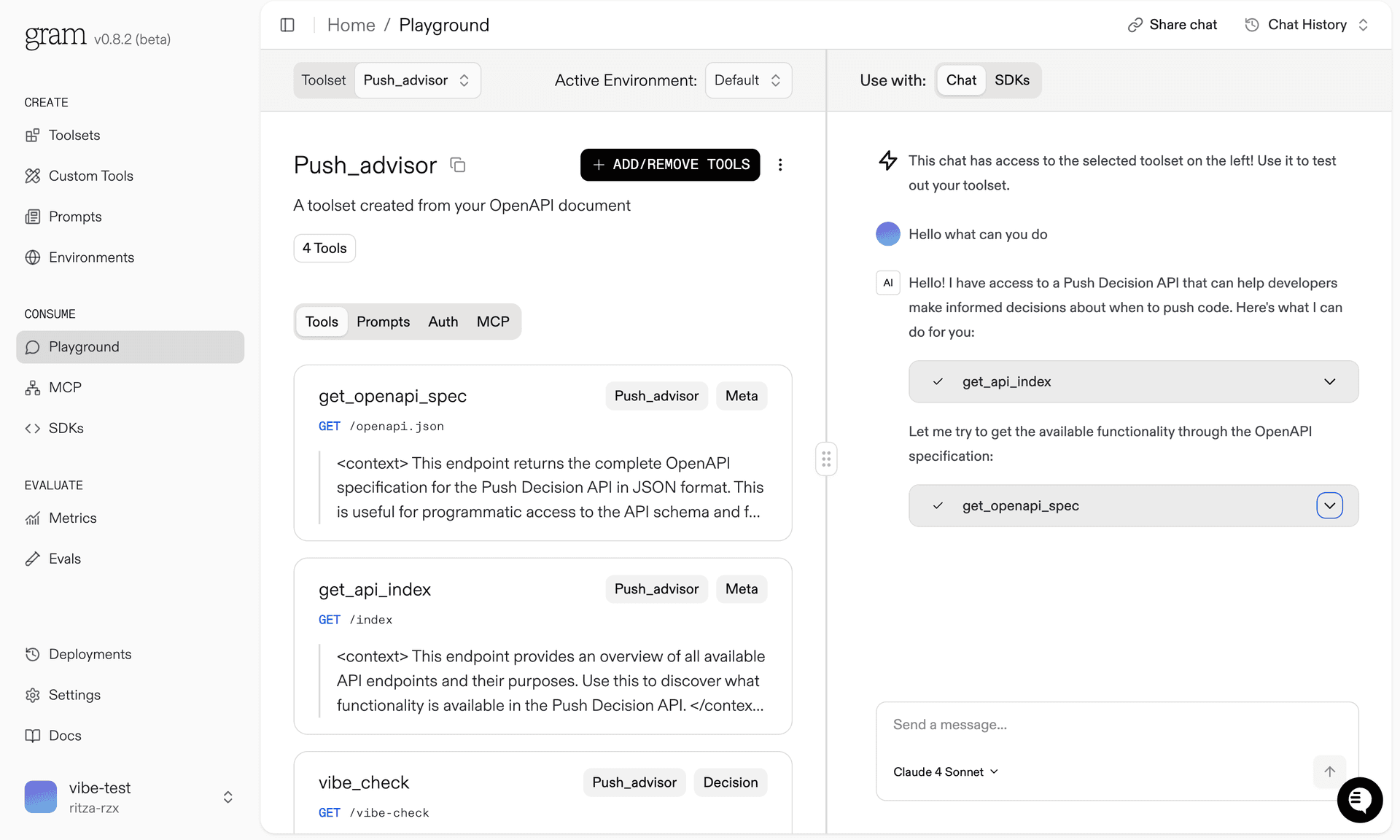
Step 4: Ship 🚢
Now that a toolset has been curated, and an environment has been configured, your MCP server is ready to ship!
Open the MCP page, and open your MCP server by clicking it.
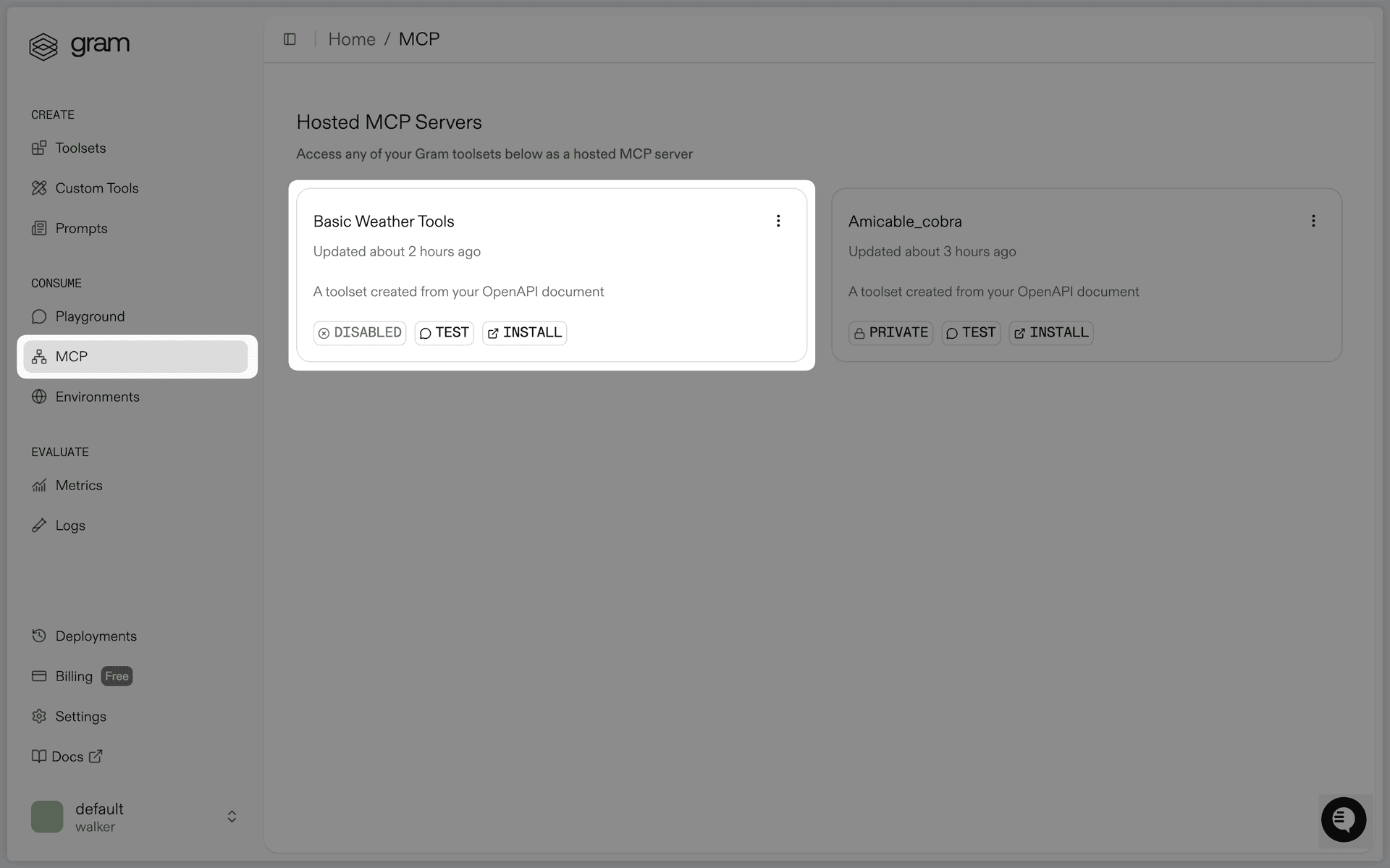
Click Enable to allow the MCP server to handle requests.
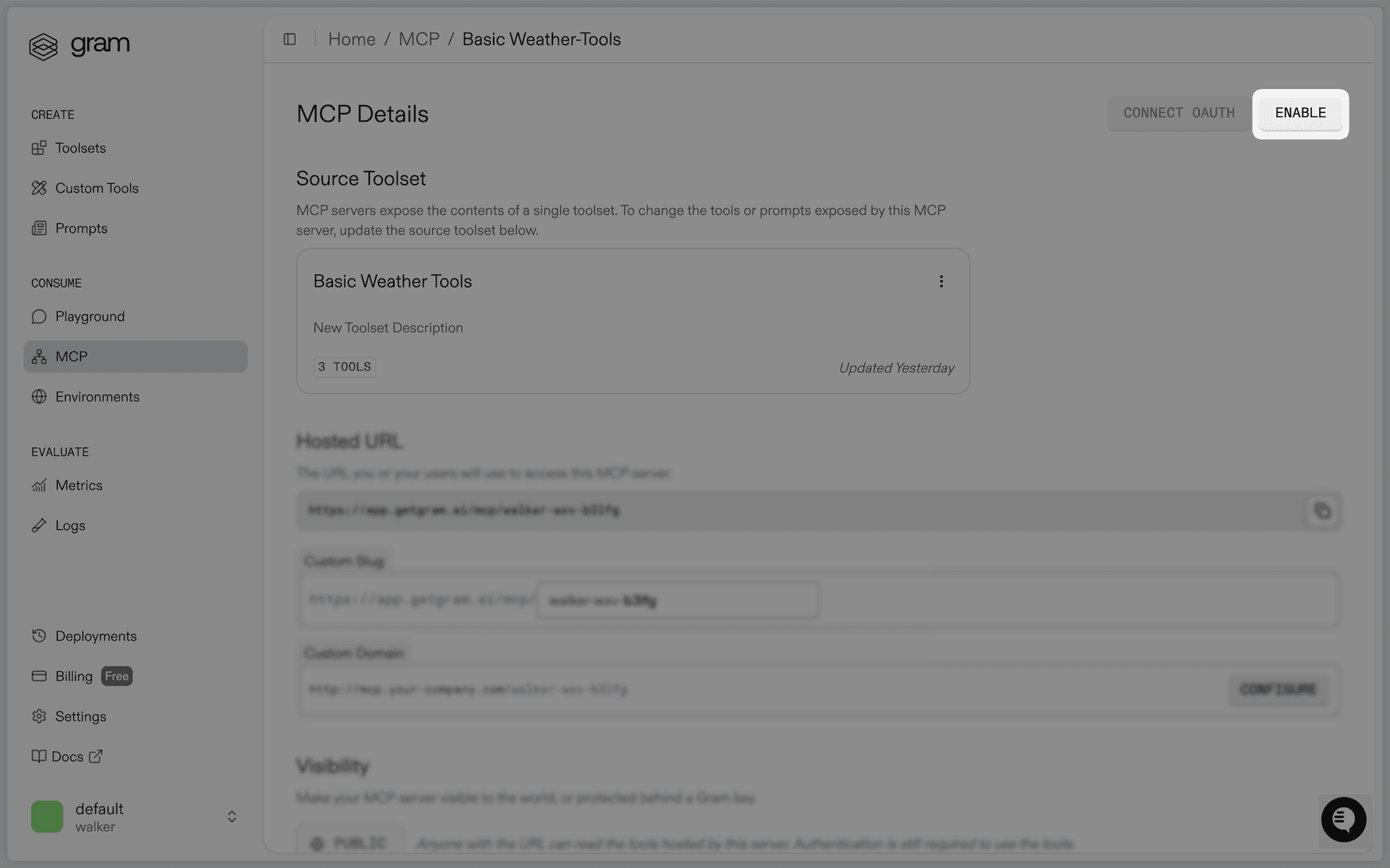
Now that the MCP server is set up, you can interact with it using an MCP client like Claude!
Installation
The MCP server you just created can be accessed using any MCP client, such as Claude or Cursor. Find installation instructions for various clients in the MCP Server’s installation page, which is linked under the MCP Installation section of the MCP Server’s Details page.
Configuring Visibility
To configure your MCP server as public or private, go to MCP in the sidebar and select MCP Config for your hosted server.
- A public server can be instantly used by any of your customers, simply by copying the configuration provided into an MCP client.
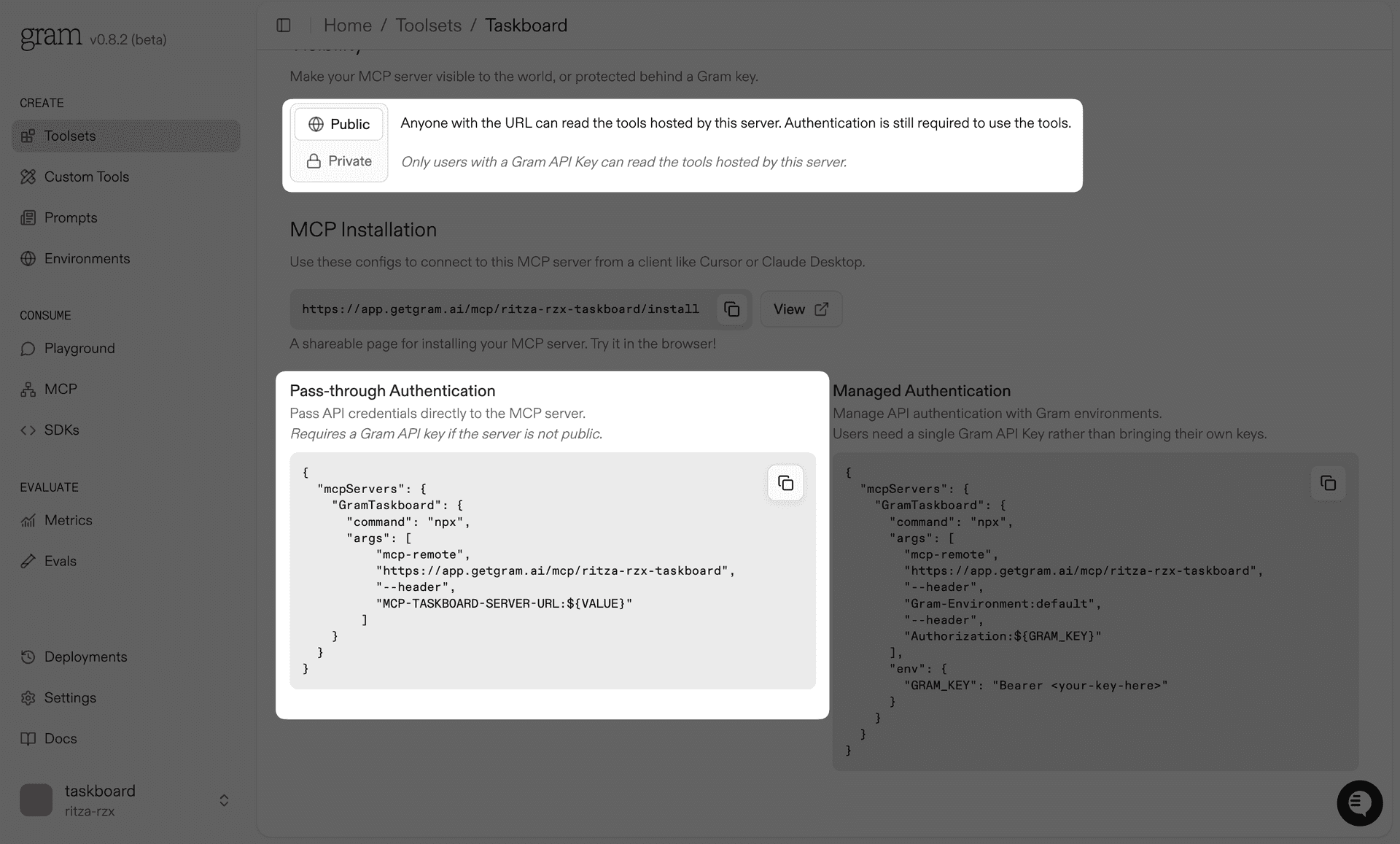
- An authenticated server requires a Gram API key in the project configuration, making it suitable for internal use cases where access needs to be restricted to authorized users.
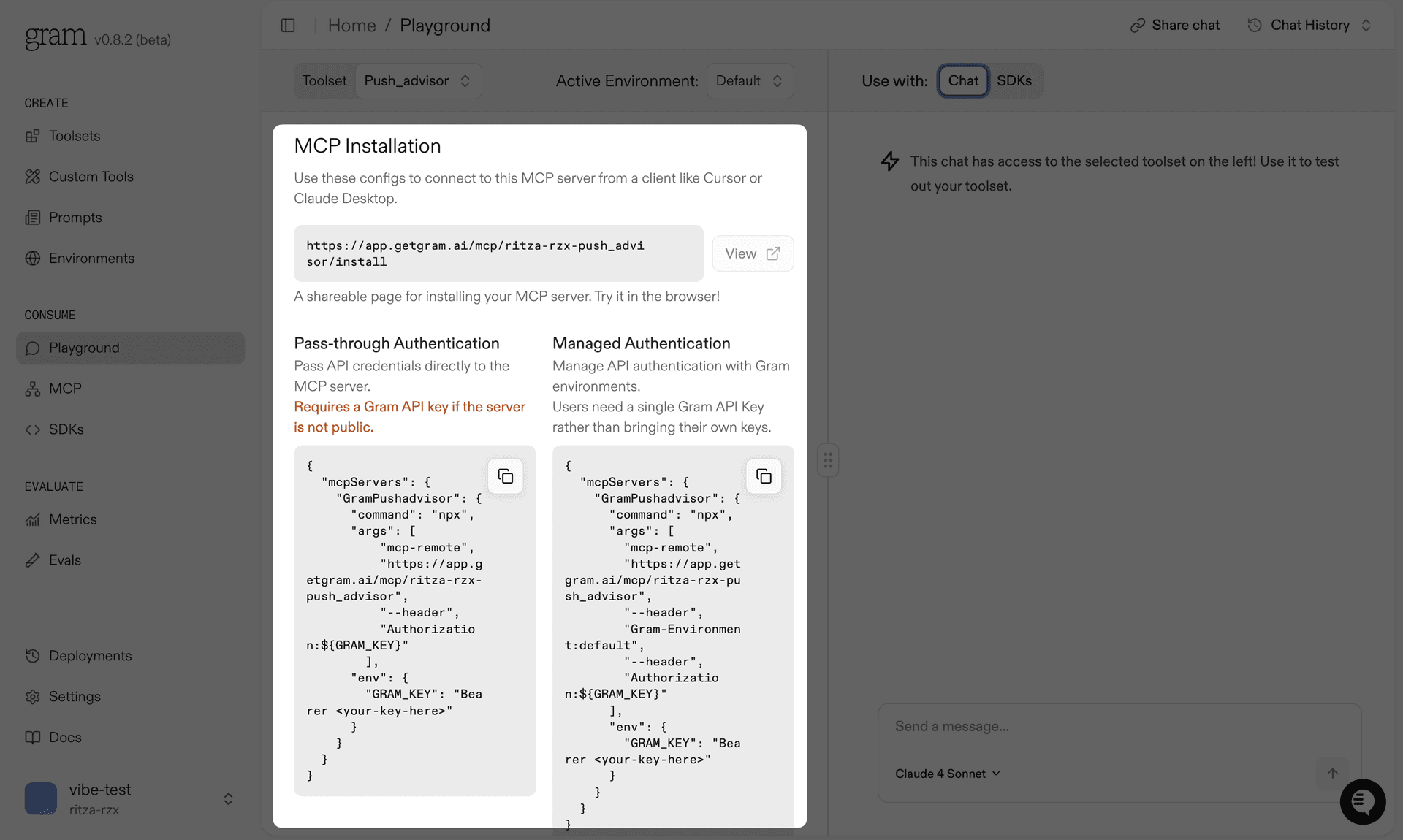
Connect your MCP server to AI agents
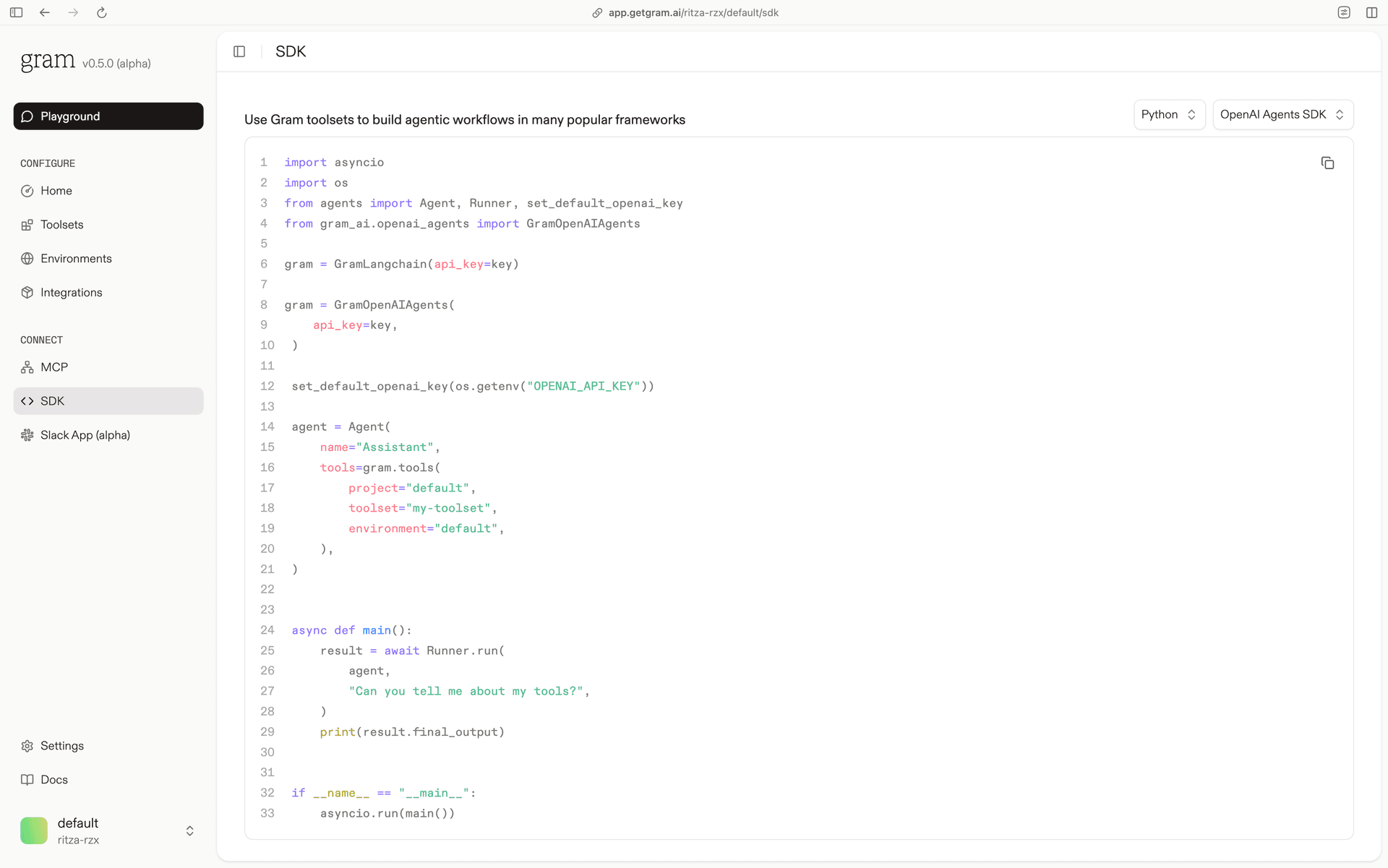
In addition to MCP Clients like Claude, your customers can automate interactions with your MCP server using AI agents. The Gram Python and TypeScript SDKs support OpenAI Agents, LangChain, and other function-based tooling, and Gram provides sample code to help you create agents within your existing framework.
Here is an example Python snippet that shows how to integrate your MCP server with LangChain:
import asyncio
import os
from langchain import hub
from langchain_openai import ChatOpenAI
from langchain.agents import AgentExecutor, create_openai_functions_agent
from gram_ai.langchain import GramLangchain

key = "<GRAM_API_KEY>"

gram = GramLangchain(api_key=key)

llm = ChatOpenAI(
    model="gpt-4",
    temperature=0,
    openai_api_key=os.getenv("OPENAI_API_KEY")
)

tools = gram.tools(
    project="default",
    toolset="marketing",
    environment="demo-environment",
)

prompt = hub.pull("hwchase17/openai-functions-agent")

agent = create_openai_functions_agent(llm=llm, tools=tools, prompt=prompt)

agent_executor = AgentExecutor(agent=agent, tools=tools, verbose=False)

async def main():
    response = await agent_executor.ainvoke({
        "input": "Can you tell me about my tools?"
    })
    print(response)

if __name__ == "__main__":
    asyncio.run(main())
In the Agents tab in the Playground dashboard, you can build agentic workflows by selecting a language and integration type.
What’s next?
The following resources will help you get the most out of your Gram MCP server:
- Learn about best practices for curating toolsets.
- Improve tool names and descriptions
- Add tools using the Gram TypeScript Framework.
Last updated on