Using the OpenAI Apps SDK with Gram Functions
This walkthrough demonstrates how to build and deploy an interactive ChatGPT App using the OpenAI Apps SDK backed by Gram Functions. It covers:
- Creating a ChatGPT Apps SDK example and using it in a ChatGPT client
- Serving MCP tools and resources from a hosted Gram Functions MCP Server
The finished experience lets a user ask for pizza recommendations, watch ChatGPT drop pins onto an interactive map, and keep the conversation flowing — all without leaving the chat.
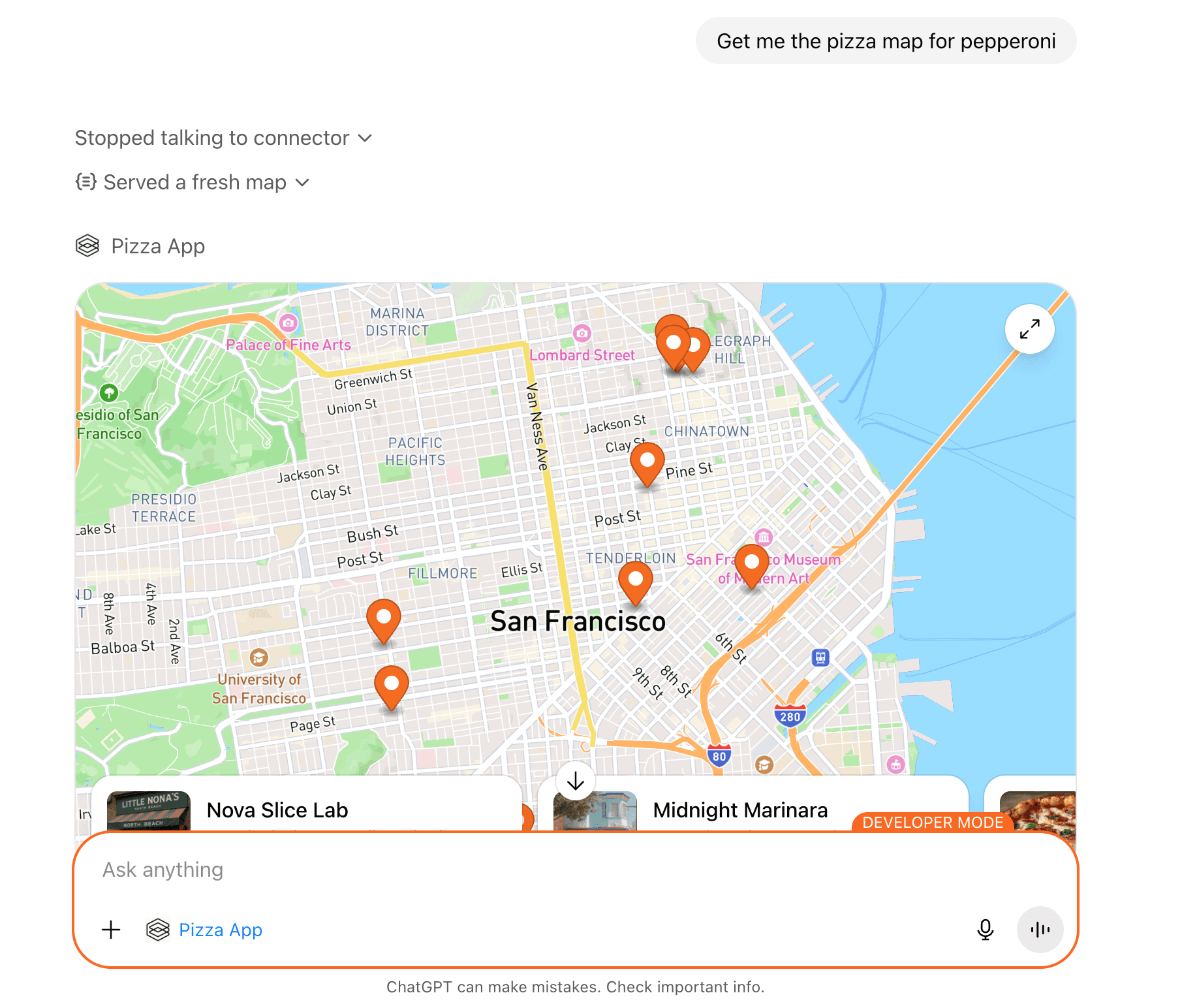
For those new to Apps, the official OpenAI
Apps SDK documentation
provides a great overview of how connectors appear in the product. The full code for this pizza example is available in the pizza-app-gram
README .
The OpenAI Apps SDK provides a fast way to package tools, resources, and UI widgets for ChatGPT. Gram Functions offers the same ergonomic developer experience for deployments and observability.
This guide rebuilds the Pizza Map sample from the official Apps SDK examples and ships it as a hosted Gram MCP server to get it running inside ChatGPT in a few minutes. The walkthrough demonstrates how to:
- Inline the Pizza Map widget so it can be shipped as a Gram function bundle
- Deploy the packaged function to Gram
- Implement the MCP server that exposes both tools and HTML widget resources
- Install the MCP server in ChatGPT and use it as an app
Prerequisites
To follow this guide, you need:
- Node.js 22.18 or later
- pnpm
- The Gram CLI
- The OpenAI Apps SDK CLI
- An OpenAI API key for creating ChatGPT apps
- Basic familiarity with MCP concepts (such as MCP tools and resources)
Developer mode availability
ChatGPT developer mode currently requires a ChatGPT Plus, Pro, Business, Enterprise, or Education subscription. See OpenAI’s developer mode guide for the latest availability details.
Enable ChatGPT developer mode
Custom connectors only appear after enabling developer mode in ChatGPT:
- Open ChatGPT .
- Navigate to Settings → Apps → Advanced Settings.
- Toggle Developer mode on.
With developer mode enabled, the Pizza Map app can be installed and tested directly in the ChatGPT sidebar.
Set up the project
Clone the Speakeasy fork for the OpenAI Pizza Map sample and install the dependencies:
git clone https://github.com/speakeasy-api/openai-apps-sdk-examples.git
cd openai-apps-sdk-examples/pizzaz_server_node/pizza-app-gram
pnpm install
The sample contains two sibling directories:
| Path | Purpose |
|---|---|
pizzaz_server_node/src | The source for the MCP server, plus the bundled JS/HTML/CSS widget templates it serves locally |
pizzaz_server_node/pizza-app-gram | The thin wrapper that knows how to package and deploy that server to Gram Functions |
Inline the widget assets
The base Pizza Map example expects you to host the widget’s JS/CSS/HTML from a
separate asset server. Gram Functions can proxy that setup, but to keep
deployment simple, let’s inline everything into a static blob that the MCP server
can serve directly. The project ships an inline:app script that snapshots
the Pizza Map React UI into a widget-template.ts module:
pnpm inline:appUnder the hood, scripts/build-inlined.ts walks the Pizza Map web assets, minifies
them, and writes a WIDGET_HTML_TEMPLATES map that the MCP server can read
without making additional network calls. Rerun the script whenever the UI changes.
Build the MCP server
All of the interesting Apps SDK wiring happens inside
pizzaz_server_node/src/mcp-server.ts. The sample sets up everything you
need — no edits required — but it helps to understand how the tool and widget are
structured. The module defines a single pizza-map tool, the HTML resource that
backs the widget, and enough metadata for ChatGPT to know it can render inline
UI. Here’s the core of that file:
import { Server } from "@modelcontextprotocol/sdk/server/index.js";
import {
  CallToolRequestSchema,
  ListResourcesRequestSchema,
  ListToolsRequestSchema,
  ReadResourceRequestSchema,
} from "@modelcontextprotocol/sdk/types.js";
import { z } from "zod";
import { WIDGET_HTML_TEMPLATES } from "./widget-templates.ts";

type PizzazWidget = {
  id: string;
  title: string;
  templateUri: string;
  invoking: string;
  invoked: string;
  html: string;
  responseText: string;
};

function getWidgetHtml(componentName: string): string {
  const html = WIDGET_HTML_TEMPLATES[componentName as keyof typeof WIDGET_HTML_TEMPLATES];
  if (!html) {
    throw new Error(`Widget HTML template for "${componentName}" not found.`);
  }
  return html;
}

function widgetMeta(widget: PizzazWidget) {
  return {
    "openai/outputTemplate": widget.templateUri,
    "openai/toolInvocation/invoking": widget.invoking,
    "openai/toolInvocation/invoked": widget.invoked,
    "openai/widgetAccessible": "true",
    "openai/resultCanProduceWidget": "true",
  } as const;
}

const widgets: PizzazWidget[] = [
  {
    id: "pizza-map",
    title: "Show Pizza Map",
    templateUri: "ui://widget/pizza-map.html",
    invoking: "Hand-tossing a map",
    invoked: "Served a fresh map",
    html: getWidgetHtml("pizzaz"),
    responseText: "Rendered a pizza map!",
  },
];

const widgetsById = new Map<string, PizzazWidget>();
widgets.forEach((widget) => widgetsById.set(widget.id, widget));

const widgetsByUri = new Map<string, PizzazWidget>();
widgets.forEach((widget) => widgetsByUri.set(widget.templateUri, widget));

const toolInputParser = z.object({ pizzaTopping: z.string() });

export function createPizzazServer(): Server {
  const server = new Server(
    { name: "pizzaz-node", version: "0.1.0" },
    { capabilities: { resources: {}, tools: {} } }
  );

  server.setRequestHandler(ListToolsRequestSchema, async () => ({
    tools: widgets.map((widget) => ({
      name: widget.id,
      description: widget.title,
      inputSchema: {
        type: "object",
        properties: {
          pizzaTopping: { type: "string", description: "Topping to mention when rendering the widget." },
        },
        required: ["pizzaTopping"],
      },
      _meta: widgetMeta(widget),
      annotations: {
        destructiveHint: false,
        openWorldHint: false,
        readOnlyHint: true,
      },
    })),
  }));

  server.setRequestHandler(ListResourcesRequestSchema, async () => ({
    resources: widgets.map((widget) => ({
      uri: widget.templateUri,
      name: widget.title,
      description: `${widget.title} widget markup`,
      mimeType: "text/html+skybridge",
      _meta: widgetMeta(widget),
    })),
  }));

  server.setRequestHandler(ReadResourceRequestSchema, async (request) => {
    const widget = widgetsByUri.get(request.params.uri);
    if (!widget) {
      throw new Error(`Unknown resource: ${request.params.uri}`);
    }
    return {
      contents: [
        {
          uri: widget.templateUri,
          mimeType: "text/html+skybridge",
          text: widget.html,
          _meta: widgetMeta(widget),
        },
      ],
    };
  });

  server.setRequestHandler(CallToolRequestSchema, async (request) => {
    const widget = widgetsById.get(request.params.name);
    if (!widget) {
      throw new Error(`Unknown tool: ${request.params.name}`);
    }
    const args = toolInputParser.parse(request.params.arguments ?? {});
    return {
      content: [{ type: "text", text: widget.responseText }],
      structuredContent: { pizzaTopping: args.pizzaTopping },
      _meta: widgetMeta(widget),
    };
  });

  return server;
}
Wrap the MCP server with Gram
Gram needs a default export that returns a withGram-wrapped server. The
pizza-app-gram subproject keeps that glue tiny:
import { createPizzazServer } from "../../src/mcp-server.ts";

export const server = createPizzazServer();import { withGram } from "@gram-ai/functions/mcp";
import { server } from "./mcp.ts";
export default withGram(server, {
// Describe environment variables required by the function here. These will be
// available to fill in the Gram dashboard and hosted MCP servers.
});Because withGram automatically speaks MCP over stdio, there is no need to write
an HTTP transport or worry about session stickiness. Gram handles the hosting,
authentication, and scaling once you’ve pushed the bundle.
Build the function and deploy it to Gram
pnpm build   # runs `gf build`, producing dist/functions.js
gram auth    # once per machine
pnpm push    # wraps `gf push` to upload the bundle
After the push completes, the Gram project exposes a hosted MCP endpoint. Copy the connection string (or hosted URL) from the Gram dashboard — you needed it for the Apps SDK transport config in the next step.
Create a Gram toolset and an MCP server
Open the Gram dashboard and wire everything together:
- Create a new Toolset (for example,
Pizza Map). - Add the
pizza-maptool that shipped with your deployment. - Attach the
pizza-mapresource so ChatGPT can fetch the widget HTML.
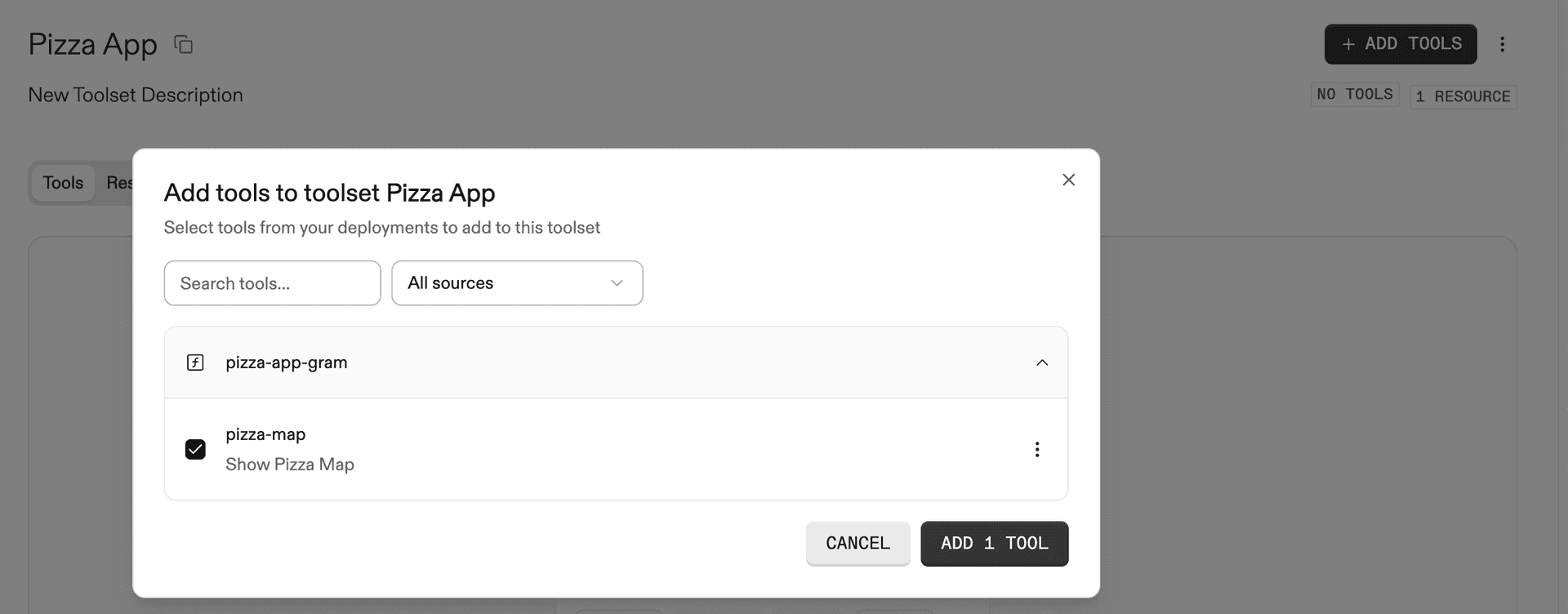
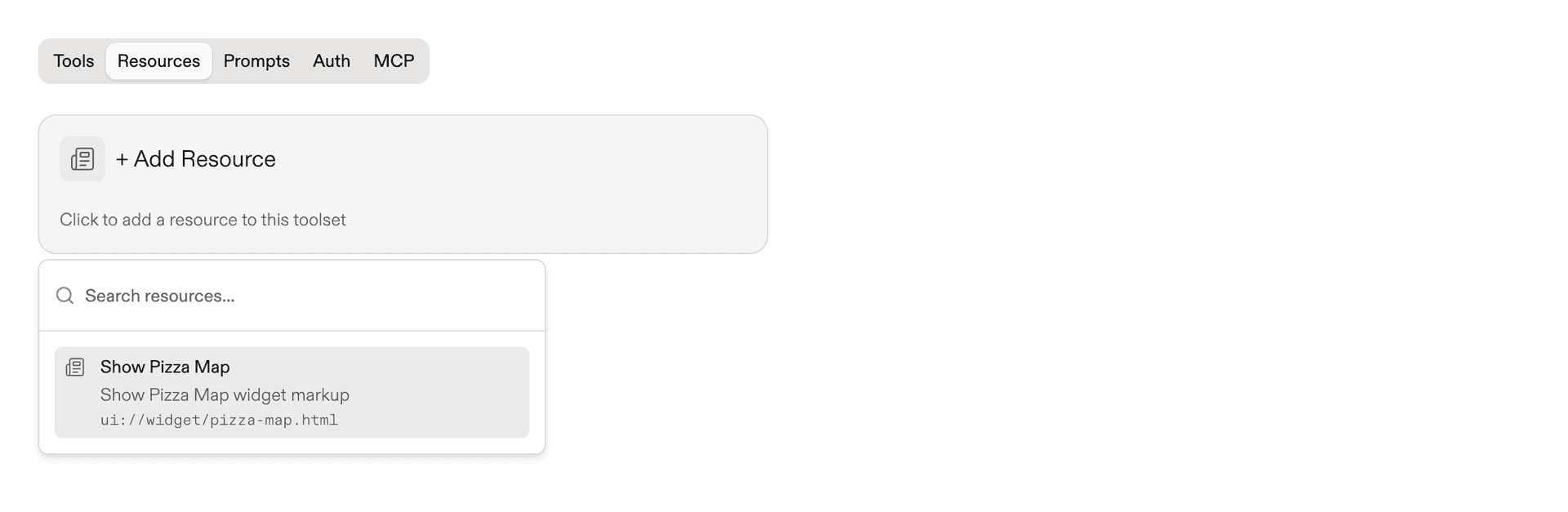
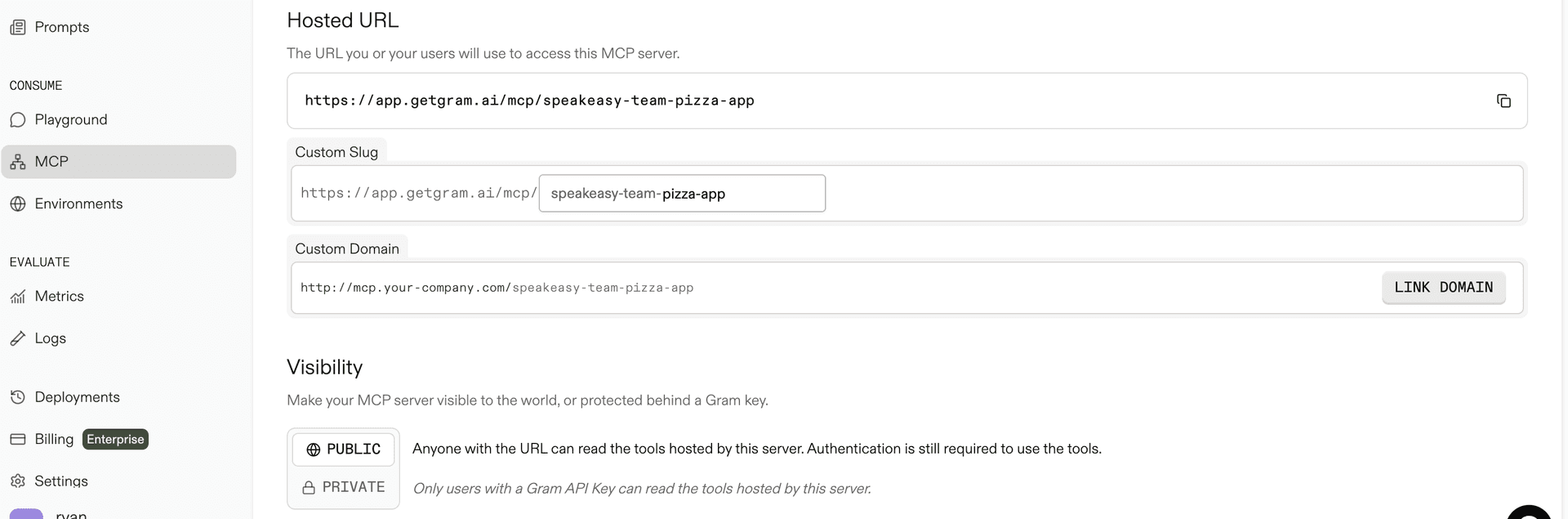
With the toolset configured, publish the MCP server and make it public so ChatGPT can reach it over HTTPS.
Add the MCP server to ChatGPT
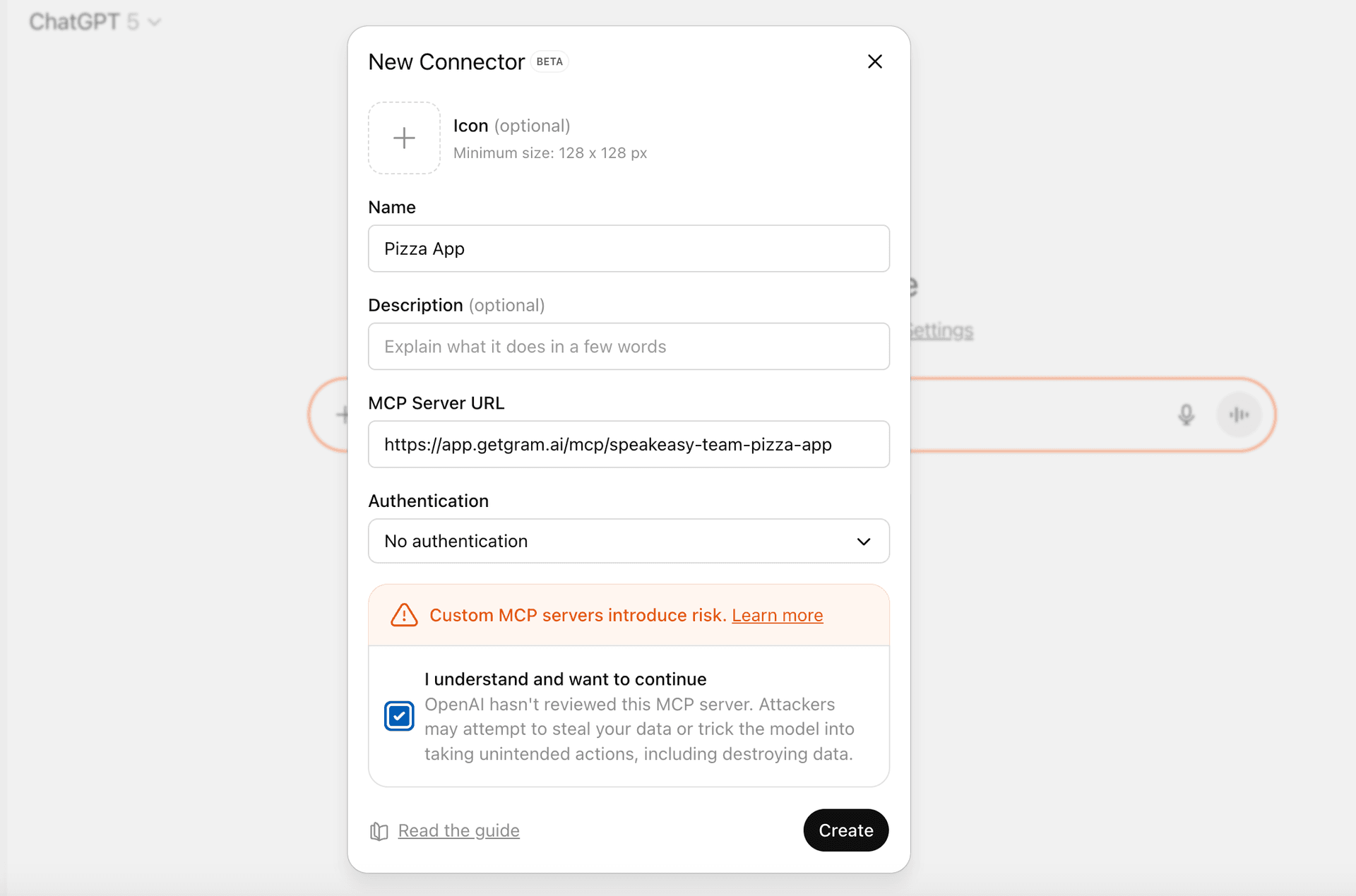
In ChatGPT, navigate to Settings → Apps, click Create, and register a new connector that points to the public Gram MCP endpoint URL created in the previous step.
Next steps
Now that you have a working OpenAI app, here are some ways to extend it:
- Add user authentication : Use OAuth to personalize responses based on logged-in users.
- Connect to external APIs: Fetch real-time data from third-party services and display it in widgets.
- Build multi-step workflows : Define multiple tools that work together for complex interactions like booking flows or data pipelines.
- Add interactivity : Build interactive UI components and use
window.openai.callToolto trigger follow-up actions from widgets. - Manage state : Persist data across tool calls and widget interactions.
Last updated on