Using Anthropic API with Gram-hosted MCP servers
Anthropic’s Messages API supports remote MCP servers through their MCP connector feature. This allows you to give Claude models direct access to your tools and infrastructure by connecting to Gram-hosted MCP servers.
This guide will show you how to connect Anthropic’s API to a Gram-hosted MCP server using an example Push Advisor API . You’ll learn how to create an MCP server from an OpenAPI document, set up the connection, configure authentication, and use natural language to query the example API.
Find the full code and OpenAPI document in the Push Advisor API repository .
Prerequisites
You’ll need:
- A Gram account .
- An Anthropic API key .
- A Python environment set up on your machine.
- Basic familiarity with making API requests.
Creating a Gram MCP server
If you already have a Gram MCP server configured, you can skip to connecting Anthropic API to your Gram-hosted MCP server. For an in-depth guide to how Gram works and more details on creating a Gram-hosted MCP server, check out our introduction to Gram.
Setting up a Gram project
In the Gram dashboard , click New Project to start the guided setup flow for creating a toolset and MCP server.

Enter a project name and click Submit.
Gram will then guide you through the following steps.
Step 1: Upload the OpenAPI document
Upload the Push Advisor OpenAPI document , enter the name of your API, and click Continue.
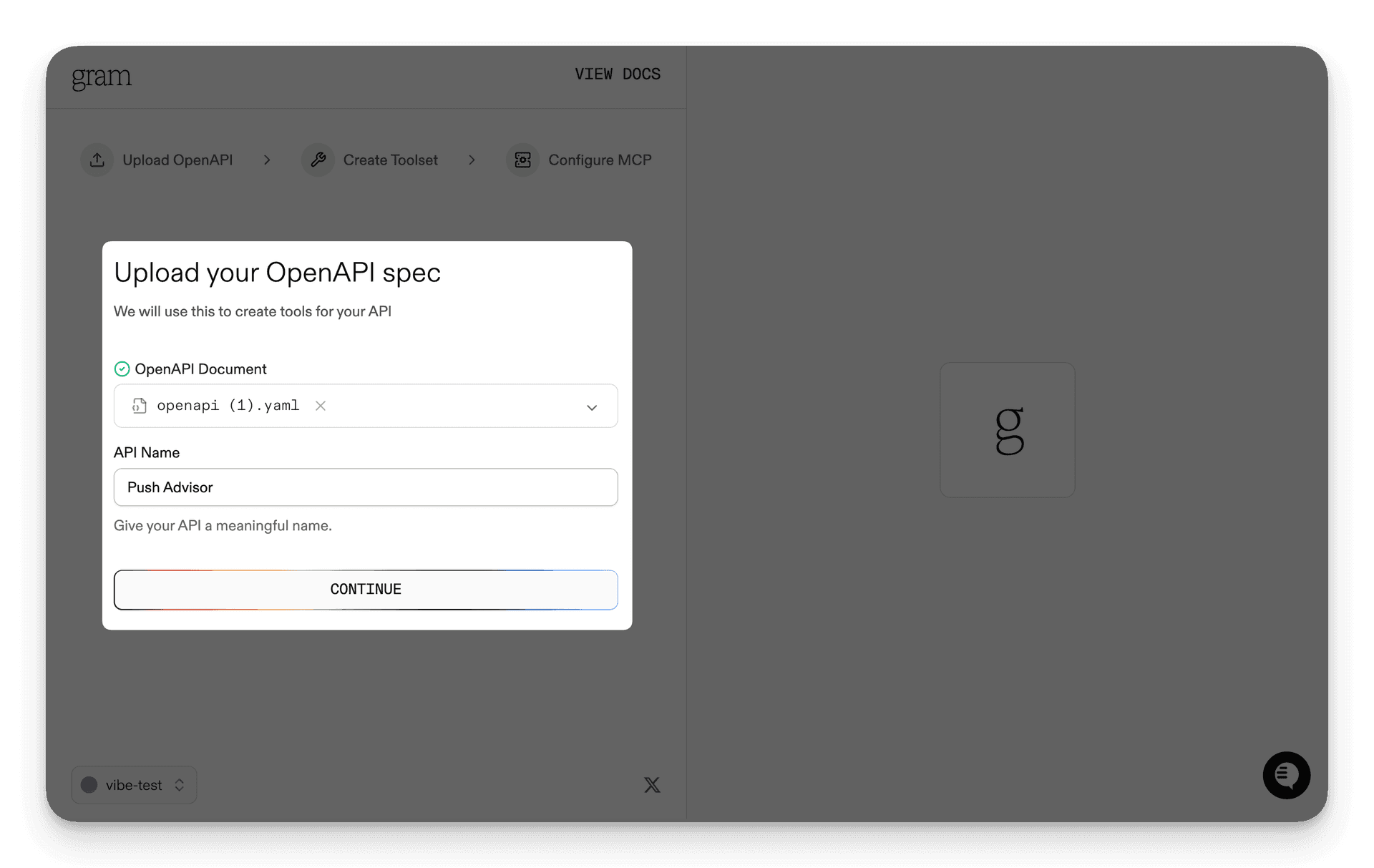
Step 2: Create a toolset
Give your toolset a name (for example, “Push Advisor”) and click Continue.
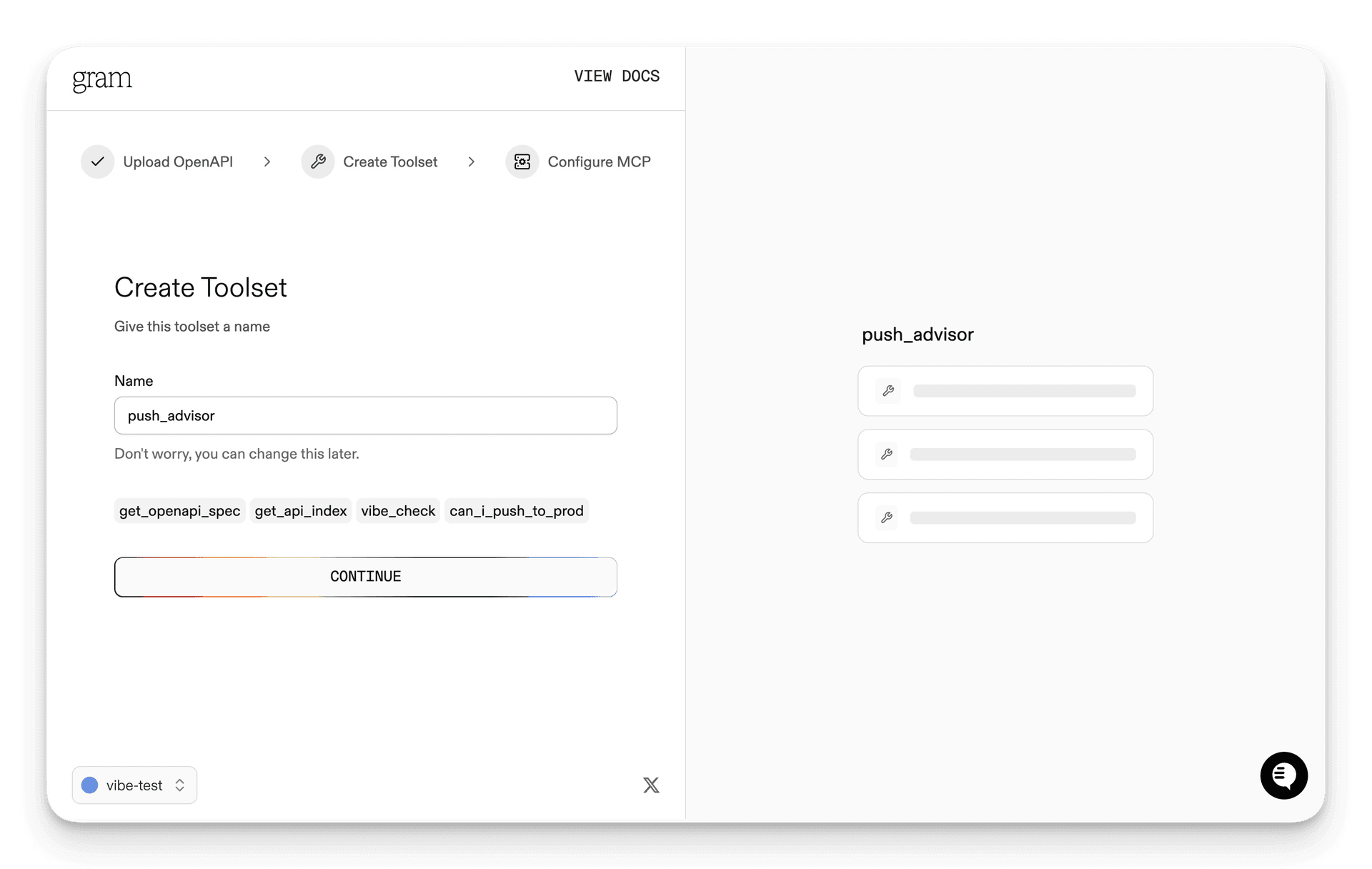
Notice that the names of the tools that will be generated from your OpenAPI document are displayed in this dialog.
Step 3: Configure MCP
Enter a URL slug for the MCP server and click Continue.
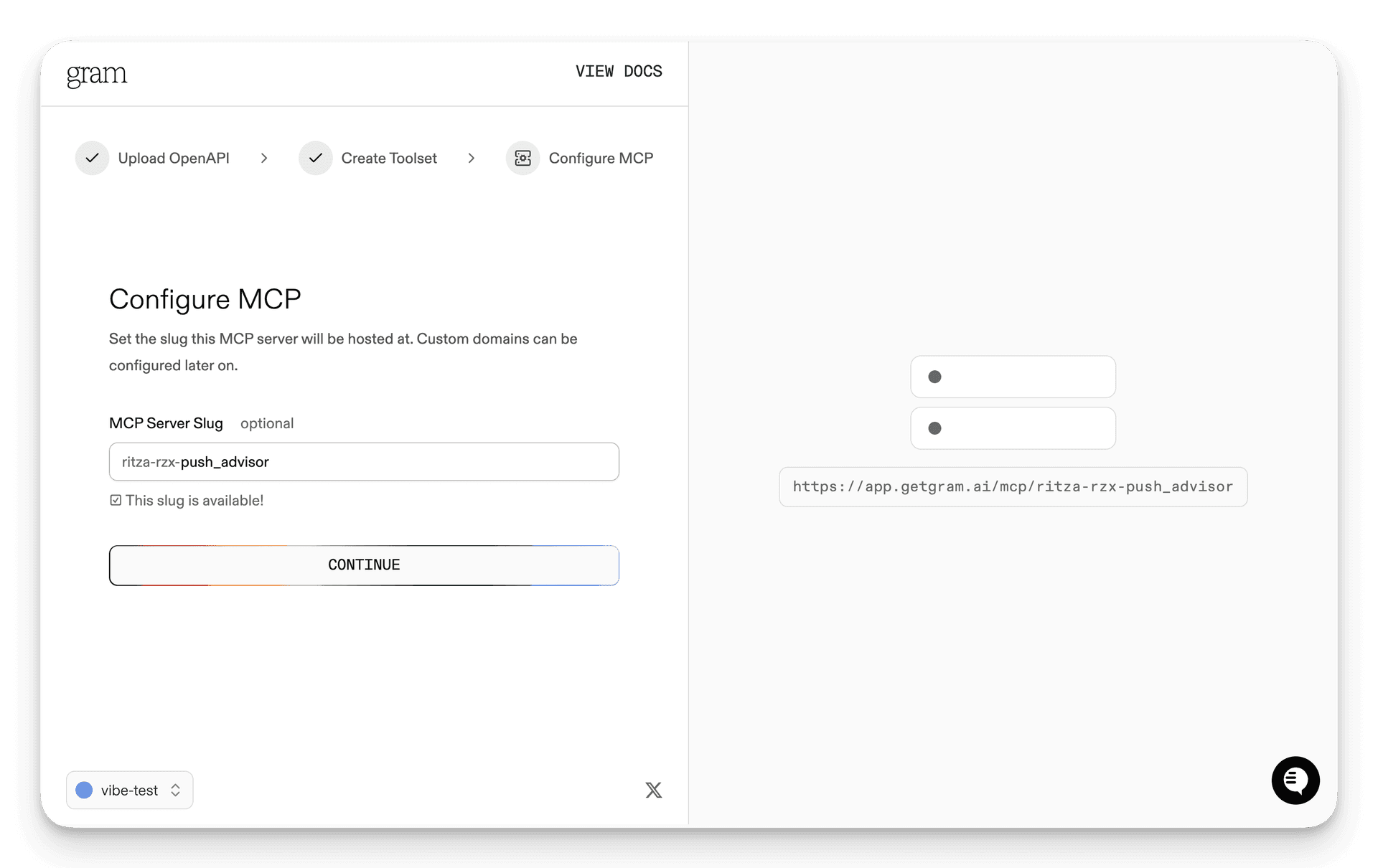
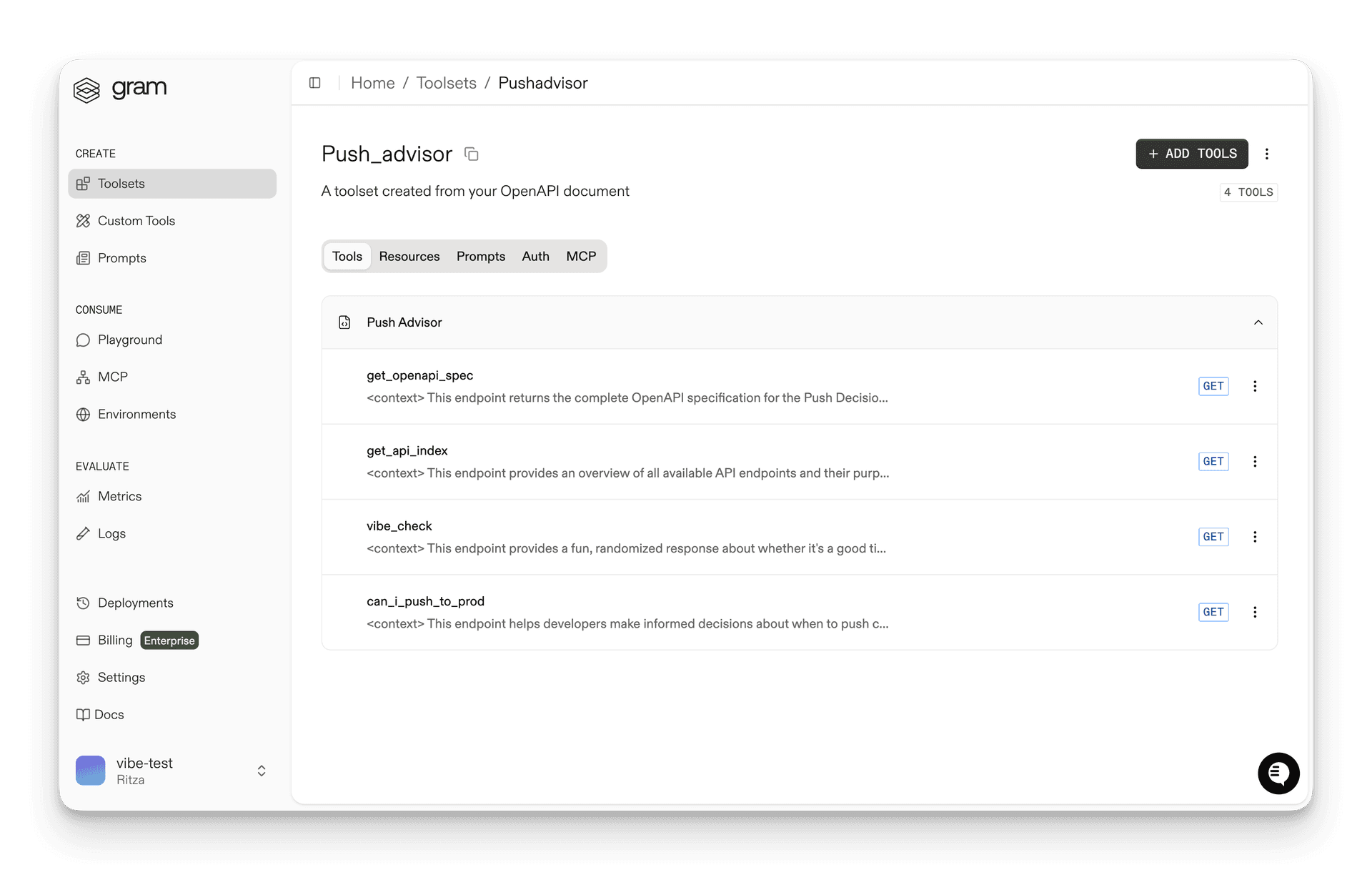
Gram will create a new toolset from the OpenAPI document.
Click Toolsets in the sidebar to view the Push Advisor toolset.
Publishing an MCP server
Let’s make the toolset available as an MCP server.
Go to the MCP tab, find the Push Advisor toolset, and click the title of the server.
On the MCP Details page, tick the Public checkbox and click Save.
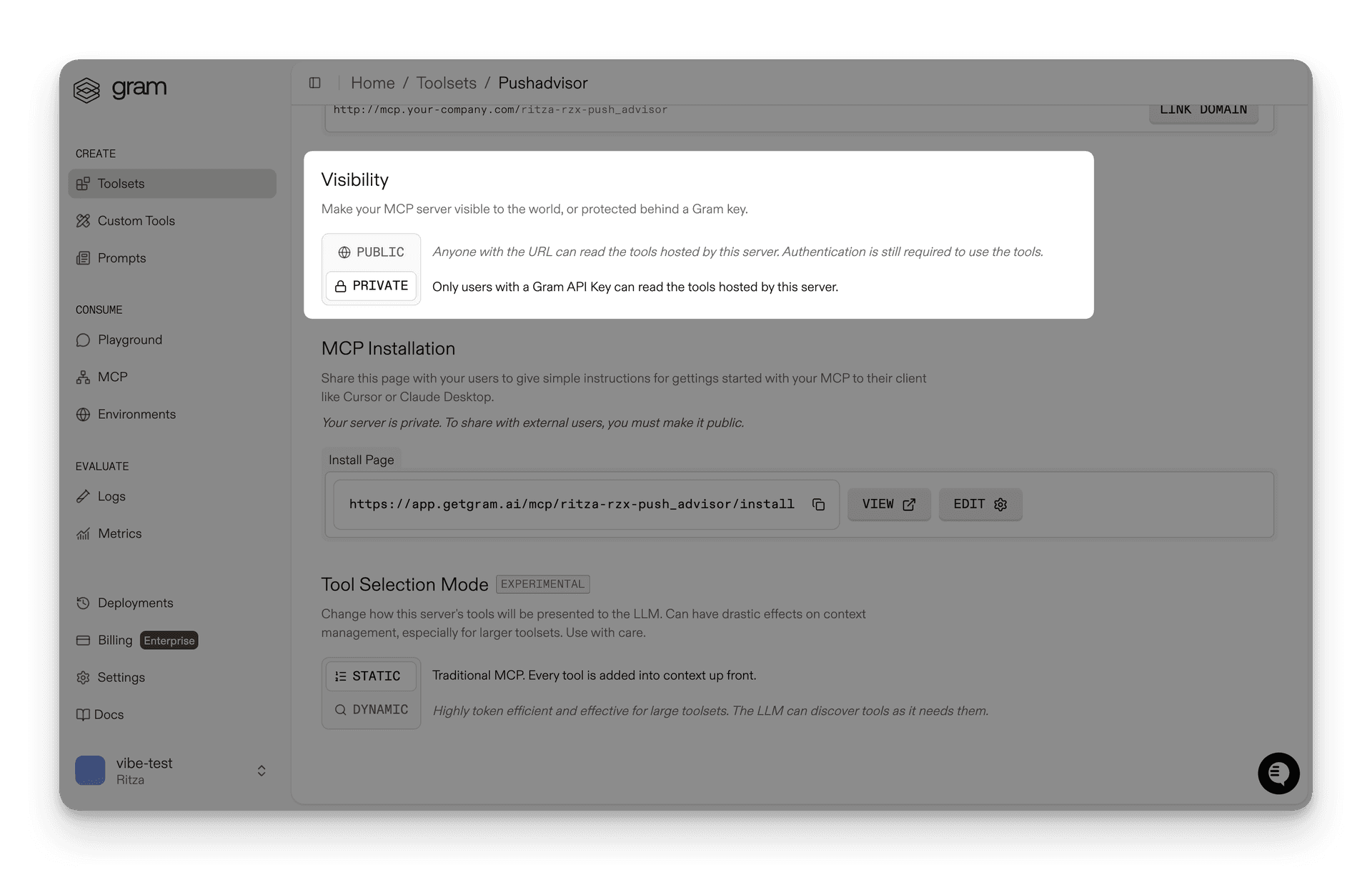
Scroll down to the MCP Config section and note your MCP server URL. For this guide, we’ll use the public server URL format:
https://app.getgram.ai/mcp/canipushtoprod
For authenticated servers, you’ll need an API key. Generate an API key in the Settings tab.
Connecting Anthropic API to your Gram-hosted MCP server
The Anthropic Messages API supports MCP servers through the mcp_servers parameter. Here’s how to connect to your Gram-hosted MCP server.
Basic connection (public server)
Here’s a basic example using a public Gram MCP server. Start by setting your Anthropic API key:
export ANTHROPIC_API_KEY=your-anthropic-api-key-hereInstall the Anthropic Python package:
pip install anthropicThen run the following Python script:
from anthropic import Anthropic

client = Anthropic()

response = client.beta.messages.create(
    model="claude-sonnet-4-20250514",
    max_tokens=1000,
    messages=[
        {
            "role": "user",
            "content": "What's the vibe today?"
        }
    ],
    mcp_servers=[
        {
            "type": "url",
            "url": "https://app.getgram.ai/mcp/canipushtoprod",
            "name": "gram-pushadvisor"
        }
    ],
    betas=["mcp-client-2025-04-04"]
)

print(response.content[0].text)
Authenticated connection
For authenticated Gram MCP servers, include your Gram API key using the authorization_token parameter.
It is safest to use environment variables to manage your API keys, so let’s set that up first:
export ANTHROPIC_API_KEY=your-anthropic-api-key-here
export GRAM_API_KEY=your-gram-api-key-here
Again, with the Anthropic Python client installed, run the following Python script to connect to your authenticated Gram MCP server:
import os
from anthropic import Anthropic

GRAM_API_KEY = os.getenv("GRAM_API_KEY")

if not GRAM_API_KEY:
    raise ValueError("Missing GRAM_API_KEY environment variable")

client = Anthropic()

response = client.beta.messages.create(
    model="claude-sonnet-4-20250514",
    max_tokens=1000,
    messages=[
        {
            "role": "user",
            "content": "Can I push to production today?"
        }
    ],
    mcp_servers=[
        {
            "type": "url",
            "url": "https://app.getgram.ai/mcp/canipushtoprod",
            "name": "gram-pushadvisor",
            "authorization_token": GRAM_API_KEY
        }
    ],
    betas=["mcp-client-2025-04-04"]
)

print(response.content[0].text)
Understanding the configuration
Here’s what each parameter in the mcp_servers array does:
type: "url"- Specifies this is a URL-based MCP server.name- A unique identifier for your MCP server.url- Your Gram-hosted MCP server URL.authorization_token- Authentication token (optional for public servers).tool_configuration- Tool filtering and permissions (optional).
Tool filtering and permissions
Using the tool_configuration parameter, you can control which tools are available for use in your MCP server while making an API call.
Filtering specific tools
If your Gram MCP server has multiple tools but you only want to expose certain ones in this particular API call, use the allowed_tools parameter:
import os
from anthropic import Anthropic

client = Anthropic()

response = client.beta.messages.create(
    model="claude-sonnet-4-20250514",
    max_tokens=1000,
    messages=[
        {
            "role": "user",
            "content": "What is the vibe today?"
        }
    ],
    mcp_servers=[
        {
            "type": "url",
            "url": "https://app.getgram.ai/mcp/canipushtoprod",
            "name": "gram-pushadvisor",
            "tool_configuration": {
                "enabled": True,
                "allowed_tools": [
                    "can_i_push_to_prod",
                    # "vibe_check", # Excluded from the allowed tools
                ]
            }
        }
    ],
    betas=["mcp-client-2025-04-04"]
)

for content in response.content:
    if content.type == "text":
        print(content.text)
# Generic claude response, extra chipper and definitely not from our test server.
Note how the vibe_check tool is excluded from the allowed_tools list. This means it won’t be available for use in this API call, even if it’s defined in your curated toolset and MCP server.
Disabling tools
You can also disable all tools from a server while keeping the server connection active:
mcp_servers=[
    {
        "type": "url",
        "url": "https://app.getgram.ai/mcp/canipushtoprod",
        "name": "gram-pushadvisor",
        "tool_configuration": {
            "enabled": False
        }
    }
]
Working with responses
The Anthropic Messages API returns specific content block types when using MCP tools:
MCP tool use blocks
When Claude uses an MCP tool, you’ll see an mcp_tool_use block in the response:
{
  "type": "mcp_tool_use",
  "id": "mcptoolu_014Q35RayjACSWkSj4X2yov1",
  "name": "can_i_push_to_prod",
  "server_name": "gram-pushadvisor",
  "input": {}
}
MCP tool result blocks
The results of tool calls appear as mcp_tool_result blocks:
{
  "type": "mcp_tool_result",
  "tool_use_id": "mcptoolu_014Q35RayjACSWkSj4X2yov1",
  "is_error": false,
  "content": [
    {
      "type": "text",
      "text": "{'safe_to_push': true, 'reason': 'It's a Tuesday and the vibe is excellent!'}"
    }
  ]
}
Error handling
Failed tool calls will have is_error: true in the result block:
from anthropic import Anthropic

client = Anthropic()

try:
    response = client.beta.messages.create(
        model="claude-sonnet-4-20250514",
        max_tokens=1000,
        messages=[
            {
                "role": "user",
                "content": "What's the deployment status?"
            }
        ],
        mcp_servers=[
            {
                "type": "url",
                "url": "https://app.getgram.ai/mcp/canipushtoprod",
                "name": "gram-pushadvisor"
            }
        ],
        betas=["mcp-client-2025-04-04"]
    )

    # Check for MCP tool errors in the response
    for content in response.content:
        if hasattr(content, 'type') and content.type == 'mcp_tool_result':
            if hasattr(content, 'is_error') and content.is_error:
                print(f"Tool error occurred: {content}")

    print(response.content[0].text)
except Exception as error:
    print(f"API call failed: {error}")
Differences from OpenAI’s MCP integration
While both Anthropic and OpenAI support MCP servers, there are key differences in their approaches:
Connection method
- Anthropic: Uses
mcp_serversparameter in Messages API with direct HTTP connections - OpenAI: Uses
toolsarray withtype: "mcp"in Responses API
Authentication
- Anthropic: Uses
authorization_tokenparameter for OAuth Bearer tokens - OpenAI: Uses
headersobject for authentication headers
Tool management
- Anthropic: Tool filtering via
tool_configurationobject withallowed_toolsarray - OpenAI: Tool filtering via
allowed_toolsparameter directly
API requirements
- Anthropic: Requires beta header
"anthropic-beta": "mcp-client-2025-04-04" - OpenAI: No special headers required for MCP support
Response format
- Anthropic: Returns
mcp_tool_useandmcp_tool_resultblocks - OpenAI: Returns
mcp_callandmcp_list_toolsitems
Testing your integration
If you encounter issues during integration, follow these steps to troubleshoot:
Validate MCP server connectivity
Before integrating into your application, test your Gram MCP server in the Gram Playground to ensure tools work correctly.
Use the MCP Inspector
Anthropic provides an MCP Inspector command line tool that helps you test and debug MCP servers before integrating them with Anthropic’s API. You can use it to validate your Gram MCP server’s connectivity and functionality.
To test your Gram MCP server with the Inspector:
# For public servers
npx -y @modelcontextprotocol/inspector
In the Transport Type field, select Streamable HTTP.
Enter your server URL in the URL field, for example:
https://app.getgram.ai/mcp/canipushtoprodClick Connect to establish a connection to your MCP server.
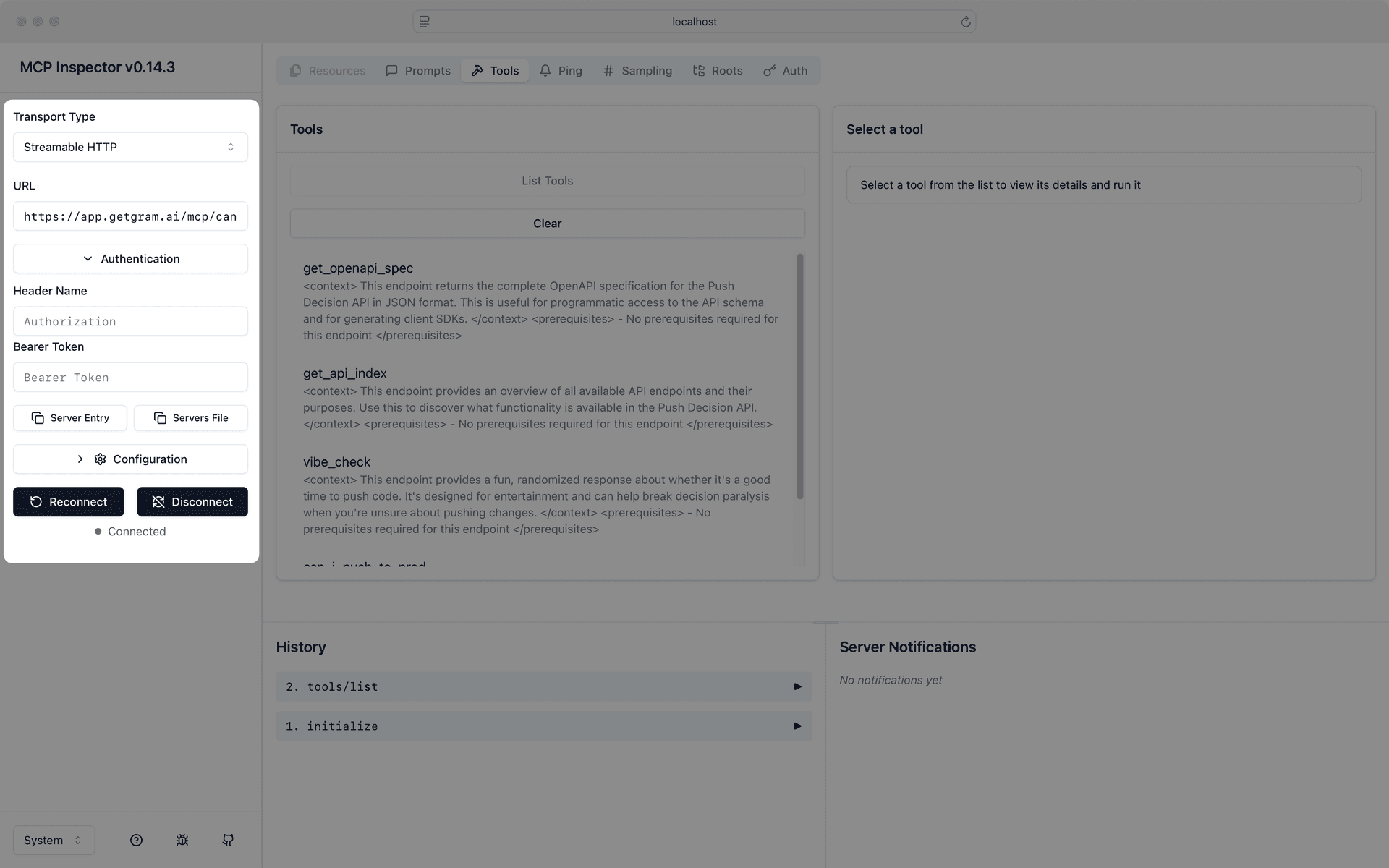
Use the Inspector to verify that your MCP server responds correctly before integrating it with your Anthropic API calls.
What’s next
You now have Anthropic’s Claude models connected to your Gram-hosted MCP server, giving them access to your custom APIs and tools.
Ready to build your own MCP server? Try Gram today and see how easy it is to turn any API into agent-ready tools that work with both Anthropic and OpenAI models.
Last updated on